Components
Available Parameter Types
The SYD package offers a rich variety of parameter types to make your interactive visualizations! Here’s your toolkit:
Parameter Type |
Description |
Use Cases |
|---|---|---|
Text input |
A classic text field for any string input |
Labels, names, free-form text |
Checkboxes |
Simple true/false decisions |
Toggle features, settings |
Dropdown menus |
Choose one option from a list |
Single selection, filters |
Multi-select menus |
Select multiple options |
Multiple filters, combined options |
Integer sliders |
Slide through whole numbers |
Range selection, adjustments |
Float sliders |
Smooth sailing through decimal values |
Precision adjustments, fine-tuning |
Integer Range sliders |
Pick two integers to define bounds |
Range limits, boundary settings |
Float Range sliders |
Select a continuous range with decimal precision |
Continuous range selection, precision limits |
Unbounded integer inputs |
Any whole number input |
Large number inputs, calculations |
Unbounded float inputs |
Decimal values without bounds |
Scientific calculations, precise measurements |
Button |
Trigger actions (not associated with a value) |
Great for saving the figure, for example! |
Info about each parameter
For more information about each parameter type, open the dropdowns below. In each, you’ll learn:
What the parameter is for
How to use it
What it returns
Documentation for the add & update methods to create or update the parameter.
Text input
Text input parameters are used to get a string input from the user.
Their format is a simple text field and they return strings. You can use them for whatever you want as long as you can represent it as a string!

- Viewer.add_text(name: str, *, value: str | NoInitialValue = NotInitialized) None[source]
Add a text input parameter to the viewer.
Creates a text box in the GUI that accepts any string input. See
TextParameterfor details.- Parameters:
name (str) – Name of the parameter (used as label in GUI)
value (Union[str, NoInitialValue]) – Initial text value If not provided, the parameter will be empty.
Examples
>>> viewer.add_text('title', value='My Plot')
>>> viewer.state['title']
'My Plot'
- Viewer.update_text(name: str, *, value: str | NoUpdate = NotUpdated) None[source]
Update a text parameter’s value.
Updates a parameter created by
add_text(). SeeTextParameterfor details about value validation.- Parameters:
name (str) – Name of the text parameter to update
value (Union[str, NoUpdate], optional) – New text value (if not provided, no change)
Examples
>>> viewer.add_text('title', value='Original Title')
>>> viewer.update_text('title', value='New Title')
>>> viewer.state['title']
'New Title'
Checkboxes
Checkbox parameters are used to get a boolean input from the user.
Their format is a checkbox and they return booleans. They’re great for toggling features on and off or changing the state of something.
For example, you could use a checkbox to toggle whether a certain plot is shown or not - or whether to show an average with a line plot vs the raw data with a scatter plot.

- Viewer.add_boolean(name: str, *, value: bool | NoInitialValue = NotInitialized) None[source]
Add a boolean parameter to the viewer.
Creates a checkbox in the GUI that can be toggled on/off. See
BooleanParameterfor details.- Parameters:
name (str) – Name of the parameter (used as label in GUI)
value (Union[bool, NoInitialValue]) – Initial state (True=checked, False=unchecked) If not provided, the parameter will be checked.
Examples
>>> viewer.add_boolean('show_grid', value=True)
>>> viewer.state['show_grid']
True
- Viewer.update_boolean(name: str, *, value: bool | NoUpdate = NotUpdated) None[source]
Update a boolean parameter’s value.
Updates a parameter created by
add_boolean(). SeeBooleanParameterfor details about value validation.- Parameters:
name (str) – Name of the boolean parameter to update
value (Union[bool, NoUpdate], optional) – New state (True/False) (if not provided, no change)
Examples
>>> viewer.add_boolean('show_grid', value=True)
>>> viewer.update_boolean('show_grid', value=False)
>>> viewer.state['show_grid']
False
Dropdown menus
Dropdown menu parameters are used to choose a single option from a list.
Dropdown menus accept a list of options, and the value of the parameter is the selected option.
What you put in the list is completely up to you, as long as you can find it in the list with a
standard == comparison.
These are great for situations where you need to choose from a few options. For example, you might want to show data from a particular session, where the “options” are the names of each session. They can also be used to show different plots or different calculations, etc etc etc.

- Viewer.add_selection(name: str, *, value: Any | NoInitialValue = NotInitialized, options: List[Any]) None[source]
Add a single-selection parameter to the viewer.
Creates a dropdown menu in the GUI where users can select one option. See
SelectionParameterfor details.- Parameters:
name (str) – Name of the parameter (used as label in GUI)
value (Any) – Initially selected value (must be one of the options)
options (list) – List of values that can be selected
Examples
>>> viewer.add_selection('color', value='red',
...                     options=['red', 'green', 'blue'])
>>> viewer.state['color']
'red'
- Viewer.update_selection(name: str, *, value: Any | NoUpdate = NotUpdated, options: List[Any] | NoUpdate = NotUpdated) None[source]
Update a selection parameter’s value and/or options.
Updates a parameter created by
add_selection(). SeeSelectionParameterfor details about value validation.- Parameters:
Examples
>>> viewer.add_selection('color', value='red',
...                     options=['red', 'green', 'blue'])
>>> # Update just the value
>>> viewer.update_selection('color', value='blue')
>>> # Update options and value together
>>> viewer.update_selection('color',
...                        options=['purple', 'orange'],
...                        value='purple')
Multi-select menus
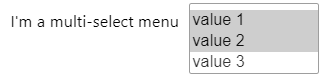
Multi-select menu parameters are used to choose multiple options from a list.
Multi-select menus accept a list of options, and the value of the parameter a list of the currently selected
options. What you put in the list is completely up to you, as long as you can find it in the list with a
standard == comparison.
These are great for situations where you need to select groups of things. For example, you might want to select multiple sessions to include in a plot, or multiple channels to include in a calculation. Maybe you have a plot that shows the same data in a variety of ways, and you want to decide which parts to show overlaid on top of each other.
- Viewer.add_multiple_selection(name: str, *, value: List[Any] | NoInitialValue = NotInitialized, options: List[Any]) None[source]
Add a multiple-selection parameter to the viewer.
Creates a set of checkboxes or a multi-select dropdown in the GUI where users can select any number of options. See
MultipleSelectionParameterfor details.- Parameters:
name (str) – Name of the parameter (used as label in GUI)
value (Union[list, NoInitialValue]) – Initially selected values (must all be in options) If not provided, the parameter will be empty.
options (list) – List of values that can be selected
Examples
>>> viewer.add_multiple_selection('toppings',
...     value=['cheese'],
...     options=['cheese', 'pepperoni', 'mushrooms'])
>>> viewer.state['toppings']
['cheese']
- Viewer.update_multiple_selection(name: str, *, value: List[Any] | NoUpdate = NotUpdated, options: List[Any] | NoUpdate = NotUpdated) None[source]
Update a multiple selection parameter’s values and/or options.
Updates a parameter created by
add_multiple_selection(). SeeMultipleSelectionParameterfor details about value validation.- Parameters:
Examples
>>> viewer.add_multiple_selection('toppings',
...     value=['cheese'],
...     options=['cheese', 'pepperoni', 'mushrooms'])
>>> # Update selected values
>>> viewer.update_multiple_selection('toppings',
...                                 value=['cheese', 'mushrooms'])
>>> # Update options (will reset value if current selections not in new options)
>>> viewer.update_multiple_selection('toppings',
...     options=['cheese', 'bacon', 'olives'],
...     value=['cheese', 'bacon'])
Integer sliders
Integer slider parameters are used to select a single integer value within a defined range.
Their format is a slider that snaps to whole numbers, and they return integers. These are perfect for situations where you need to select from a sequence of numbers, like choosing how many items to display, selecting a specific frame number in a sequence, or adjusting discrete quantities.
For example, you might use an integer slider to select which trial number to display in an experiment, or to adjust the number of bins in a histogram.
NOTE: You can change the value by dragging the slider or by typing in the value in the text field!

- Viewer.add_integer(name: str, *, value: float | int | NoInitialValue = NotInitialized, min: float | int, max: float | int) None[source]
Add an integer parameter to the viewer.
Creates a slider to select whole numbers between a minimum and maximum. See
IntegerParameterfor details.- Parameters:
name (str) – Name of the parameter (used as label in GUI and internal identifier)
value (Union[int, NoInitialValue]) – Initial value (default position of the slider) If not provided, the parameter will be set to the minimum value.
min (int) – Minimum allowed value
max (int) – Maximum allowed value
Examples
>>> viewer.add_integer('age', value=25, min=0, max=120)
>>> viewer.add_integer('year', value=2023, min=1900, max=2100)
- Viewer.update_integer(name: str, *, value: int | NoUpdate = NotUpdated, min: int | NoUpdate = NotUpdated, max: int | NoUpdate = NotUpdated) None[source]
Update an integer parameter.
Change the value or bounds of an existing integer parameter. See
IntegerParameterfor details.- Parameters:
Examples
>>> viewer.update_integer('age', value=30) # Update just the value
>>> viewer.update_integer('year', min=2000, max=2023) # Update just the bounds
Float sliders
Float slider parameters are used to select a decimal value within a defined range.
Their format is a smooth slider that allows for decimal values, and they return floats. These are ideal for continuous adjustments where precision matters, like setting thresholds, adjusting scaling factors, or fine-tuning visual parameters. You can set the step size of the slider to be as small or as large as you want for extra control over the values.
For example, you might use a float slider to adjust the transparency of a plot overlay, set a correlation threshold, or control the smoothing factor in a data processing step.
NOTE: You can change the value by dragging the slider or by typing in the value in the text field!

- Viewer.add_float(name: str, *, value: float | int | NoInitialValue = NotInitialized, min: float | int, max: float | int, step: float = 0.01) None[source]
Add a float parameter to the viewer.
Creates a slider to select decimal numbers between a minimum and maximum. See
FloatParameterfor details.- Parameters:
name (str) – Name of the parameter (internal identifier)
value (Union[float, NoInitialValue]) – Initial value (default position of the slider) If not provided, the parameter will be set to the minimum value.
min (float) – Minimum allowed value
max (float) – Maximum allowed value
step (float, optional) – Step size for the slider (default: 0.01)
Examples
>>> viewer.add_float('temperature', value=98.6, min=95.0, max=105.0, step=0.1)
>>> viewer.add_float('price', value=9.99, min=0.0, max=100.0, step=0.01)
- Viewer.update_float(name: str, *, value: float | NoUpdate = NotUpdated, min: float | NoUpdate = NotUpdated, max: float | NoUpdate = NotUpdated, step: float | NoUpdate = NotUpdated) None[source]
Update a float parameter.
Change the value, bounds, or step size of an existing float parameter. See
FloatParameterfor details.- Parameters:
name (str) – Name of the parameter to update
value (Union[float, NoUpdate], optional) – New value
min (Union[float, NoUpdate], optional) – New minimum allowed value
max (Union[float, NoUpdate], optional) – New maximum allowed value
step (Union[float, NoUpdate], optional) – New step size for the slider
Examples
>>> viewer.update_float('temperature', value=99.5) # Update just the value
>>> viewer.update_float('price', min=5.0, max=200.0, step=0.05) # Update bounds and step
Integer Range sliders
Integer range slider parameters are used to select a range between two integer values.
Their format is a dual-handle slider that snaps to whole numbers, and they return a tuple of integers (start, end). These are perfect for defining discrete intervals or bounds, like selecting a range of frames, specifying trial numbers, or setting count-based limits.
For example, you might use an integer range slider to select a span of time points in a recording, or to specify the start and end indices for a data subset.
NOTE: You can change the value by dragging the slider or by typing in the values in the text field!

- Viewer.add_integer_range(name: str, *, value: Tuple[float | int, float | int] | NoInitialValue = NotInitialized, min: float | int, max: float | int) None[source]
Add an integer range parameter to the viewer.
Creates a range slider to select a range of whole numbers between bounds. See
IntegerRangeParameterfor details.- Parameters:
name (str) – Name of the parameter (internal identifier)
value (Union[tuple[int, int], NoInitialValue]) – Initial (low, high) values for the range If not provided, the parameter will be set to the full range.
min (int) – Minimum allowed value for the range
max (int) – Maximum allowed value for the range
Examples
>>> viewer.add_integer_range('age_range', value=(25, 45), min=18, max=100)
>>> viewer.add_integer_range('year_range', value=(2000, 2020), min=1900, max=2100)
- Viewer.update_integer_range(name: str, *, value: Tuple[int, int] | NoUpdate = NotUpdated, min: int | NoUpdate = NotUpdated, max: int | NoUpdate = NotUpdated) None[source]
Update an integer range parameter.
Change the range values or bounds of an existing integer range parameter. See
IntegerRangeParameterfor details.- Parameters:
Examples
>>> viewer.update_integer_range('age_range', value=(30, 50)) # Update just the values
>>> viewer.update_integer_range('year_range', min=1950, max=2023) # Update just the bounds
Float Range sliders
Float range slider parameters are used to select a continuous range between two decimal values.
Their format is a dual-handle slider that allows for decimal values, and they return a tuple of floats (start, end). These are ideal for defining continuous intervals where precision matters, like specifying frequency bands, setting value thresholds, or defining time windows.
For example, you might use a float range slider to select a specific frequency band for filtering, or to define minimum and maximum values for data normalization.
In addition, float sliders are a great way to control the xlim or ylim of a plot if you want it to be persistent when you are updating the other parameters!!!
NOTE: You can change the value by dragging the slider or by typing in the values in the text field!

- Viewer.add_float_range(name: str, *, value: Tuple[float | int, float | int] | NoInitialValue = NotInitialized, min: float | int, max: float | int, step: float = 0.01) None[source]
Add a float range parameter to the viewer.
Creates a range slider to select a range of decimal numbers between bounds. See
FloatRangeParameterfor details.- Parameters:
name (str) – Name of the parameter (internal identifier)
value (Union[tuple[float, float], NoInitialValue]) – Initial (low, high) values for the range If not provided, the parameter will be set to the full range.
min (float) – Minimum allowed value for the range
max (float) – Maximum allowed value for the range
step (float, optional) – Step size for the slider (default: 0.01)
Examples
>>> viewer.add_float_range('temp_range', value=(97.0, 99.0), min=95.0, max=105.0, step=0.1)
>>> viewer.add_float_range('price_range', value=(10.0, 50.0), min=0.0, max=100.0, step=0.01)
- Viewer.update_float_range(name: str, *, value: Tuple[float, float] | NoUpdate = NotUpdated, min: float | NoUpdate = NotUpdated, max: float | NoUpdate = NotUpdated, step: float | NoUpdate = NotUpdated) None[source]
Update a float range parameter.
Change the range values, bounds, or step size of an existing float range parameter. See
FloatRangeParameterfor details.- Parameters:
name (str) – Name of the parameter to update
value (Union[tuple[float, float], NoUpdate], optional) – New (low, high) values
min (Union[float, NoUpdate], optional) – New minimum allowed value
max (Union[float, NoUpdate], optional) – New maximum allowed value
step (Union[float, NoUpdate], optional) – New step size for the slider
Examples
>>> viewer.update_float_range('temp_range', value=(97.5, 98.5)) # Update just the values
>>> viewer.update_float_range(
...     'price_range',
...     min=10.0,
...     max=500.0,
...     step=0.5
... )  # Update bounds and step
Unbounded integer inputs
Unbounded integer input parameters are used when you need to input any whole number without range restrictions.
Their format is a simple number input field that only accepts integers, and they return integers. These are perfect for situations where you can’t predict the range of values needed, like entering large numbers, IDs, or counts that could vary widely.
For example, you might use an unbounded integer input to specify a random seed for reproducibility, enter a specific trial number in a large dataset, or input a timestamp.

- Viewer.add_unbounded_integer(name: str, *, value: float | int | NoInitialValue = NotInitialized) None[source]
Add an unbounded integer parameter to the viewer.
Creates a text input box in the GUI for entering whole numbers. Unlike add_integer(), this allows very large numbers without bounds. See
UnboundedIntegerParameterfor details.- Parameters:
name (str) – Name of the parameter (used as label in GUI)
value (Union[int, NoInitialValue]) – Initial value If not provided, the parameter will be set to 0.
Examples
>>> viewer.add_unbounded_integer('population', value=1000000)
>>> viewer.state['population']
1000000
- Viewer.update_unbounded_integer(name: str, *, value: int | NoUpdate = NotUpdated) None[source]
Update an unbounded integer parameter’s value and/or bounds.
Updates a parameter created by
add_unbounded_integer(). SeeUnboundedIntegerParameterfor details about value validation.- Parameters:
name (str) – Name of the unbounded integer parameter to update
value (Union[int, NoUpdate], optional) – New value (if not provided, no change)
Examples
>>> viewer.add_unbounded_integer('population', value=1000000)
>>> # Update just the value
>>> viewer.update_unbounded_integer('population', value=2000000)
Unbounded float inputs
Unbounded float input parameters are used when you need to input any decimal number without range restrictions.
Their format is a simple number input field that accepts decimal values, and they return floats. These are ideal for situations where you need precise numerical input without constraints, like entering scientific measurements, custom scaling factors, or exact values for calculations.
For example, you might use an unbounded float input to enter a specific frequency value, provide a custom threshold, or input exact coordinates for visualization.

- Viewer.add_unbounded_float(name: str, *, value: float | int | NoInitialValue = NotInitialized, step: float | None = None) None[source]
Add an unbounded decimal number parameter to the viewer.
Creates a text input box in the GUI for entering numbers. Unlike add_float(), this allows very large or precise numbers without bounds. Values can optionally be rounded to a step size. See
UnboundedFloatParameterfor details.- Parameters:
name (str) – Name of the parameter (used as label in GUI)
value (Union[float, NoInitialValue]) – Initial value If not provided, the parameter will be set to 0.
step (float, optional) – Size of each increment (or None for no rounding)
Examples
>>> viewer.add_unbounded_float('wavelength', value=550e-9, step=1e-9)
>>> viewer.state['wavelength']
5.5e-07
>>> # Values will be rounded if step is provided
>>> viewer.update_unbounded_float('wavelength', value=550.7e-9)
>>> viewer.state['wavelength']
5.51e-07
- Viewer.update_unbounded_float(name: str, *, value: float | NoUpdate = NotUpdated, step: float | None | NoUpdate = NotUpdated) None[source]
Update an unbounded float parameter’s value, bounds, and/or step size.
Updates a parameter created by
add_unbounded_float(). SeeUnboundedFloatParameterfor details about value validation.- Parameters:
name (str) – Name of the unbounded float parameter to update
value (Union[float, NoUpdate], optional) – New value (will be rounded if step is set) (if not provided, no change)
step (Union[Optional[float], NoUpdate], optional) – New step size for rounding, or None for no rounding (if not provided, no change)
Examples
>>> viewer.add_unbounded_float('wavelength', value=550e-9, step=1e-9)
>>> # Update value (will be rounded if step is set)
>>> viewer.update_unbounded_float('wavelength', value=632.8e-9)
>>> # Change step size
>>> viewer.update_unbounded_float('wavelength', step=0.1e-9)
>>> # Remove step size (allow any precision)
>>> viewer.update_unbounded_float('wavelength', step=None)
Button
Button parameters are used to trigger actions.
They don’t return anything, but they are great for triggering actions like saving the figure, running a calculation, or performing an operation.
For example, suppose you’re using Syd to look at example data to pick which one you want to use as the main example in your paper. You could use a button to save a reference to the current selection so that you can save it for later!

- Viewer.add_button(name: str, *, label: str | NoInitialValue = NotInitialized, callback: Callable[[], None], replot: bool = True) None[source]
Add a button parameter to the viewer.
Creates a clickable button in the GUI that triggers the provided callback function when clicked. The button’s display text can be different from its parameter name. See
ButtonParameterfor details.- Parameters:
name (str) – Name of the parameter (internal identifier)
label (Union[str, NoInitialValue]) – Text to display on the button If not provided, the parameter’s label will be set to the name.
callback (callable) – Function to call when the button is clicked (takes state as a single argument)
replot (bool, optional) – Whether to replot the figure after the callback is called. (default: True)
Examples
>>> def save_figure(state):
...     print("Saving figure...")
...     viewer.figure.savefig('last_figure.png')
>>> viewer.add_button('save', label='Save Figure', callback=save_figure, replot=False)
>>> def print_plot_info(state):
...     print(f"Current plot info: {state['plot_info']}")
>>> viewer.add_button('print_info', label='Print Plot Info', callback=print_plot_info, replot=False)
>>> def reset_plot(state):
...     print("Resetting plot...")
>>> viewer.add_button('reset', label='Reset Plot', callback=reset_plot)
- Viewer.update_button(name: str, *, label: str | NoUpdate = NotUpdated, callback: Callable[[], None] | NoUpdate = NotUpdated, replot: bool | NoUpdate = NotUpdated) None[source]
Update a button parameter’s label and/or callback function.
Updates a parameter created by
add_button(). SeeButtonActionfor details.- Parameters:
name (str) – Name of the button parameter to update
label (Union[str, NoUpdate], optional) – New text to display on the button (if not provided, no change)
callback (Union[callable, NoUpdate], optional) – New function to call when clicked (if not provided, no change)
replot (Union[bool, NoUpdate], optional) – Whether to replot the figure after the callback is called. (default: True)
Examples
>>> def new_callback(state):
...     print("New action...")
>>> viewer.update_button('reset',
...                     label='New Action!',
...                     callback=new_callback,
...                     replot=False)